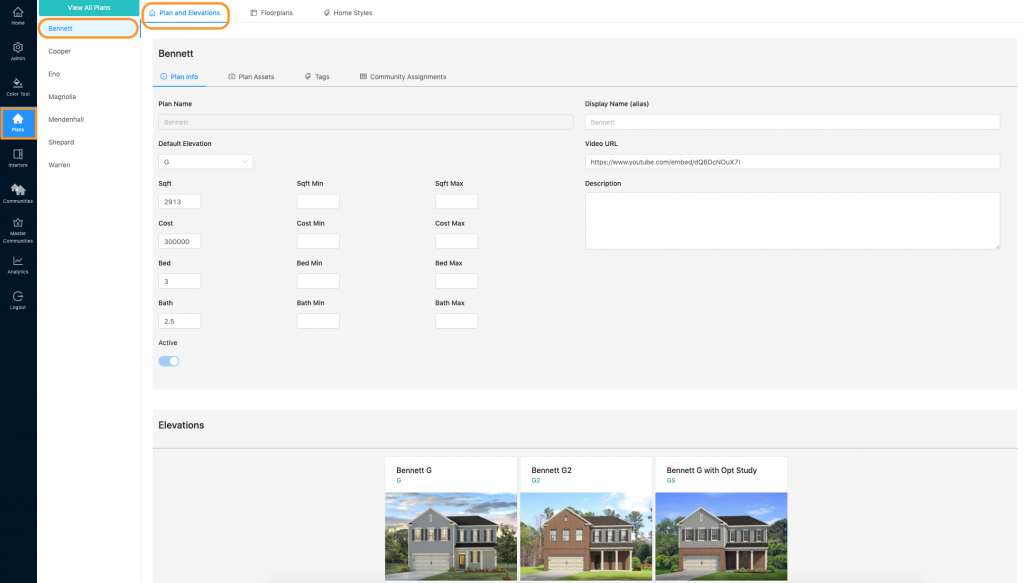
1. To add plan assets (photos or videos), go to “Plans” which will default to “Plans and Elevations.” Make sure the plan you want to add assets to is selected in the plans column to the left.
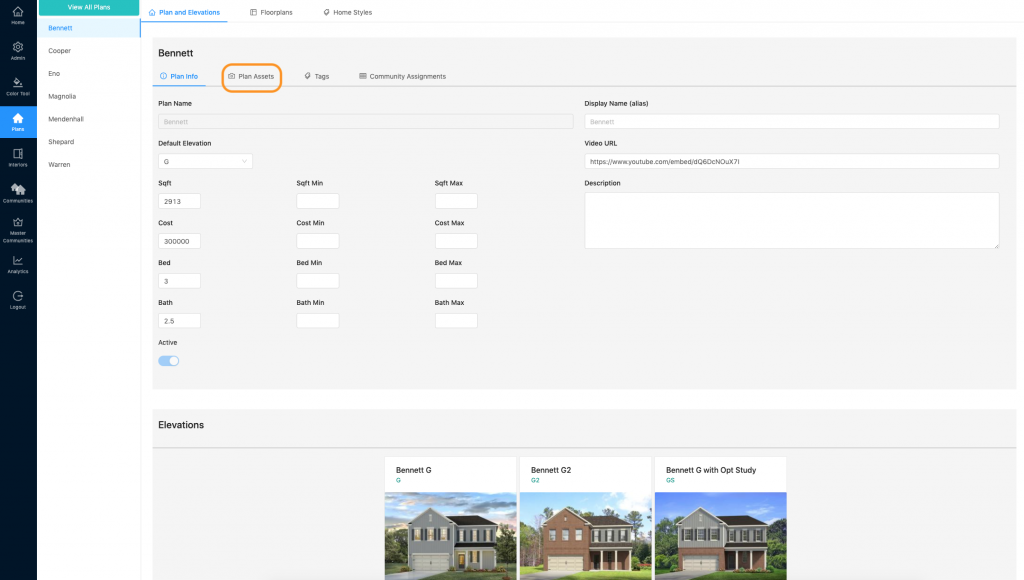
2. Find and click “Plan Assets”
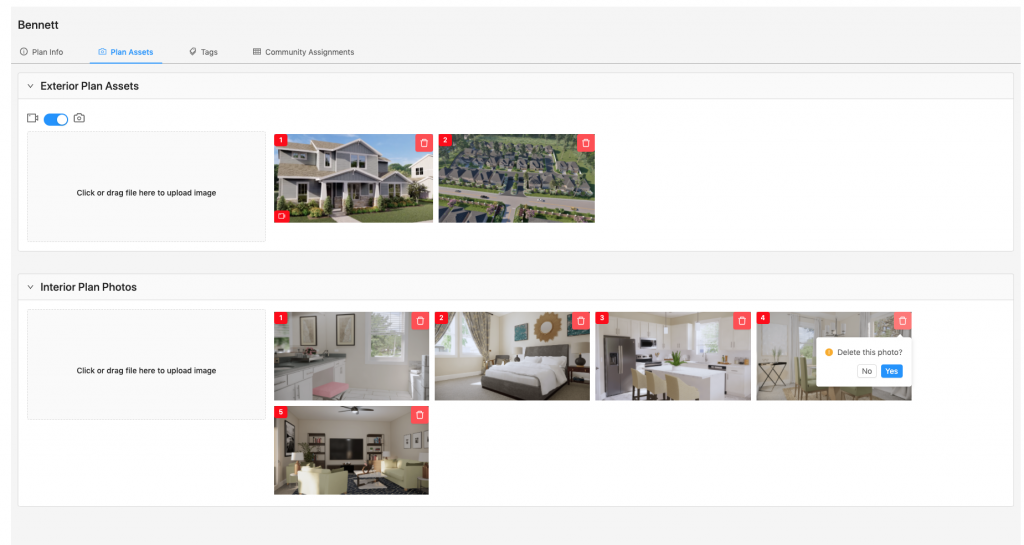
3. Here you can add exterior assets (photo or video) or interior photos.
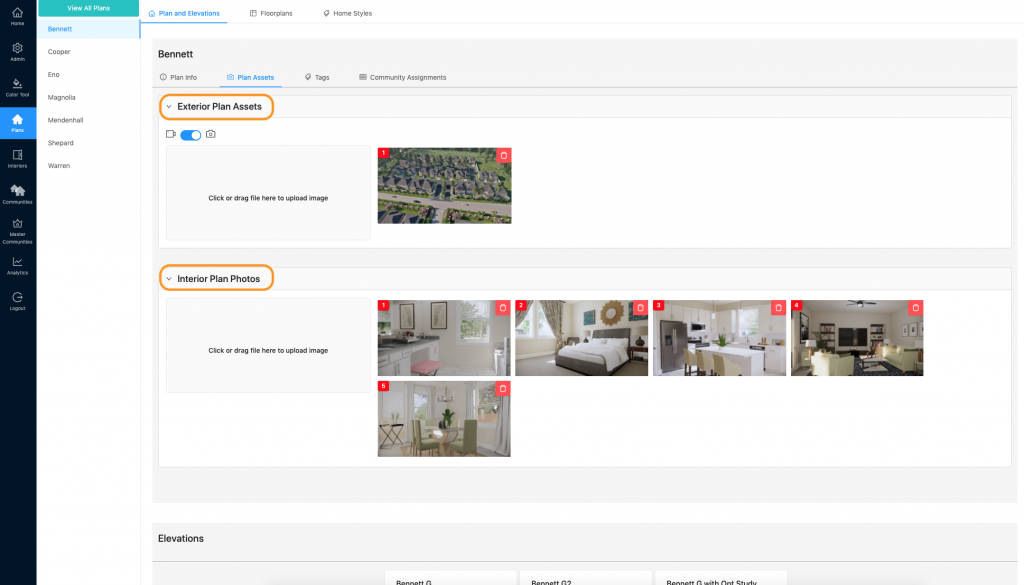
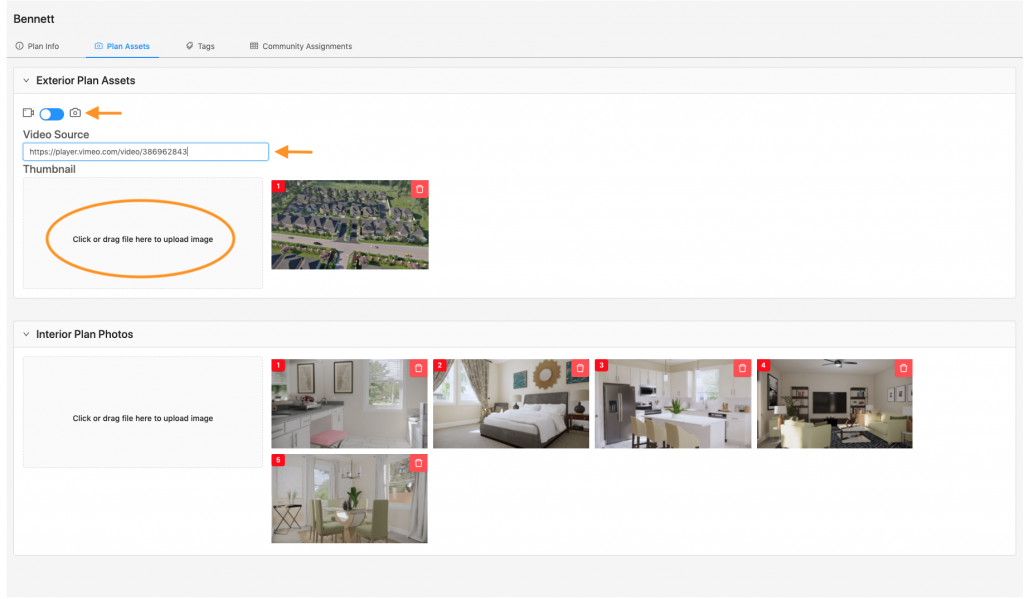
4. In Exterior Plan Assets, click the toggle to add a video. Insert a link to the video AND add a still thumbnail image.
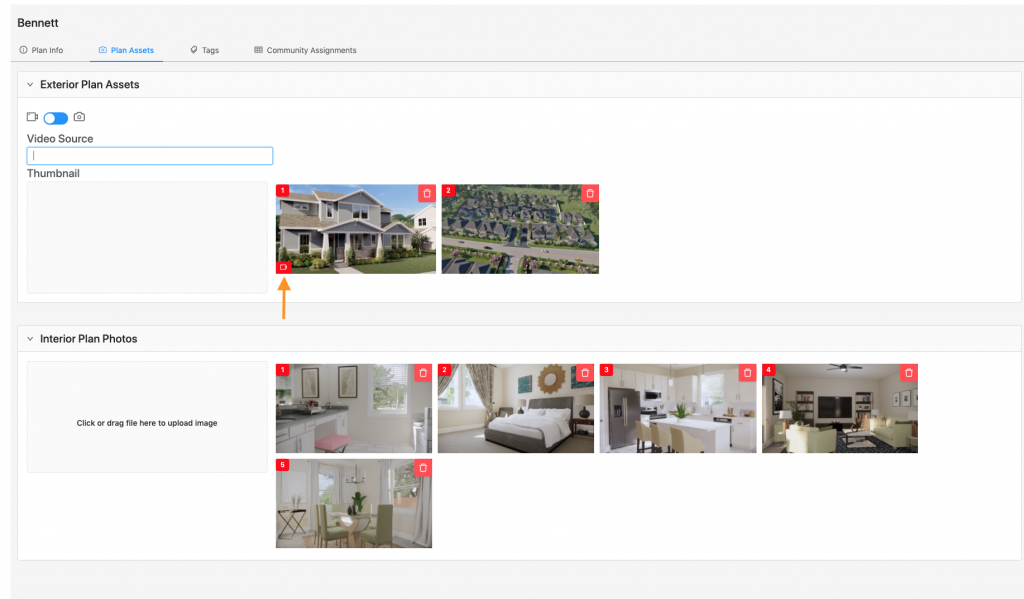
5. You will see your video pop up in your assets with a small camera symbol in the lower left corner.
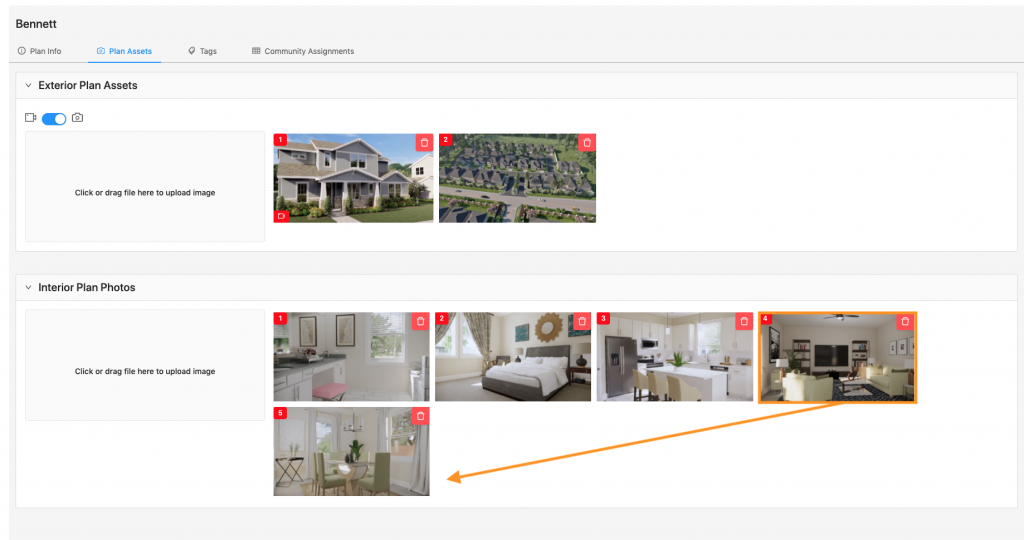
6. The red number in the upper left corner is the order in which the assets will appear on the front end. You can click and drag assets to rearrange the order.
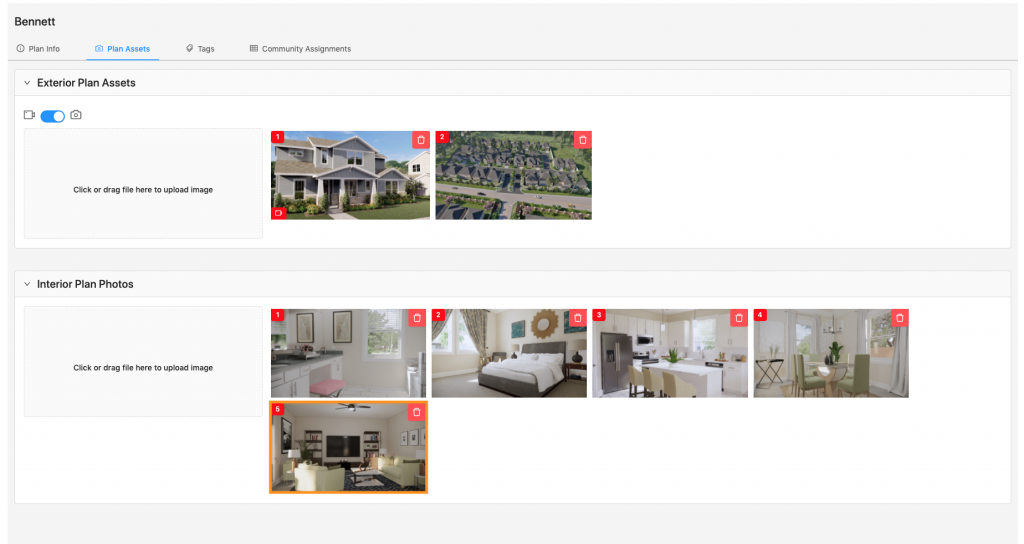
7. You can also delete assets by clicking the red trash can icon.
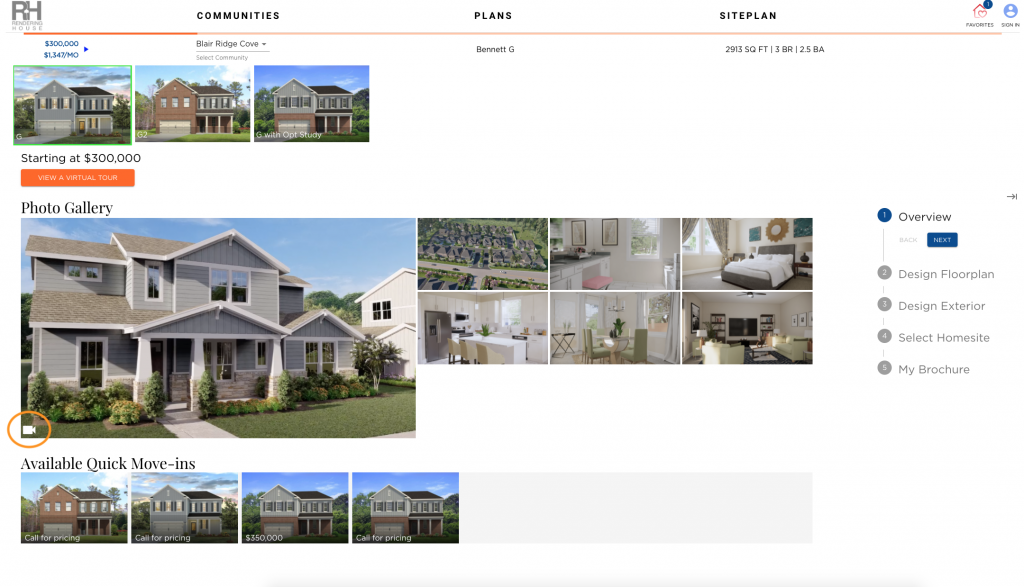
8. These assets will appear on the front end of the My Home App when you click on the correlating plan and elevation. (Notes: exterior assets will appear first and then interior. Video assets are labeled with a small camera icon in the lower left corner)