How do routing rules work?
By default, each integration gets the events that are set for it. Use Routing to send events to specified integrations instead.
A rule overrides the default behavior. If an integration has no matching rule, it does not get events until you remove all rules.
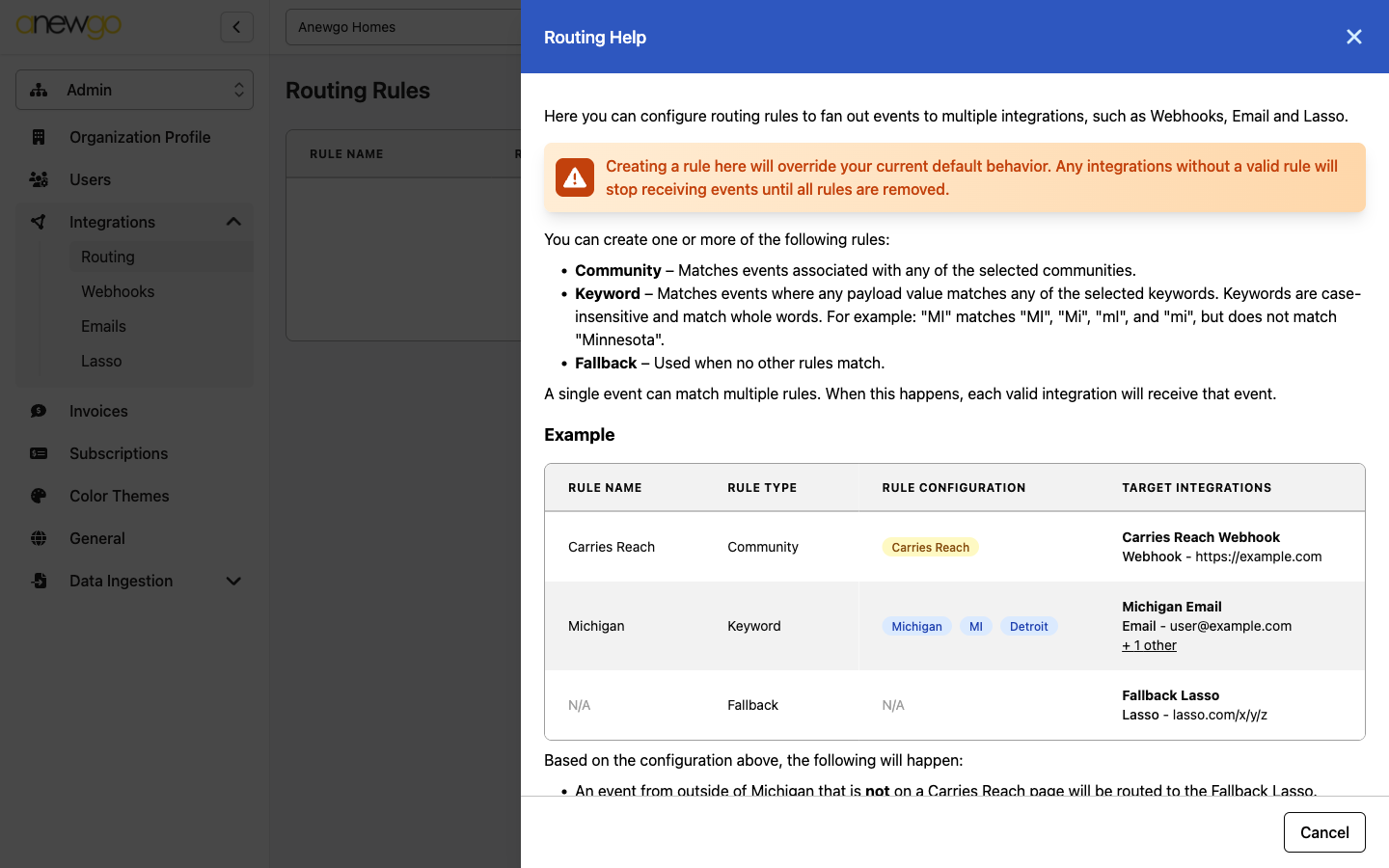
Rule types:
- Community: Matches events for one or more of the selected communities.
- Keyword: Matches events where a value matches a keyword. Keywords are not case-sensitive, and they match only full words. For example, “MI” matches “mi” but not “Minnesota”.
- Fallback: Applies when no other rule matches.
One event can match many rules. Each matching integration gets the event.
To add a rule:
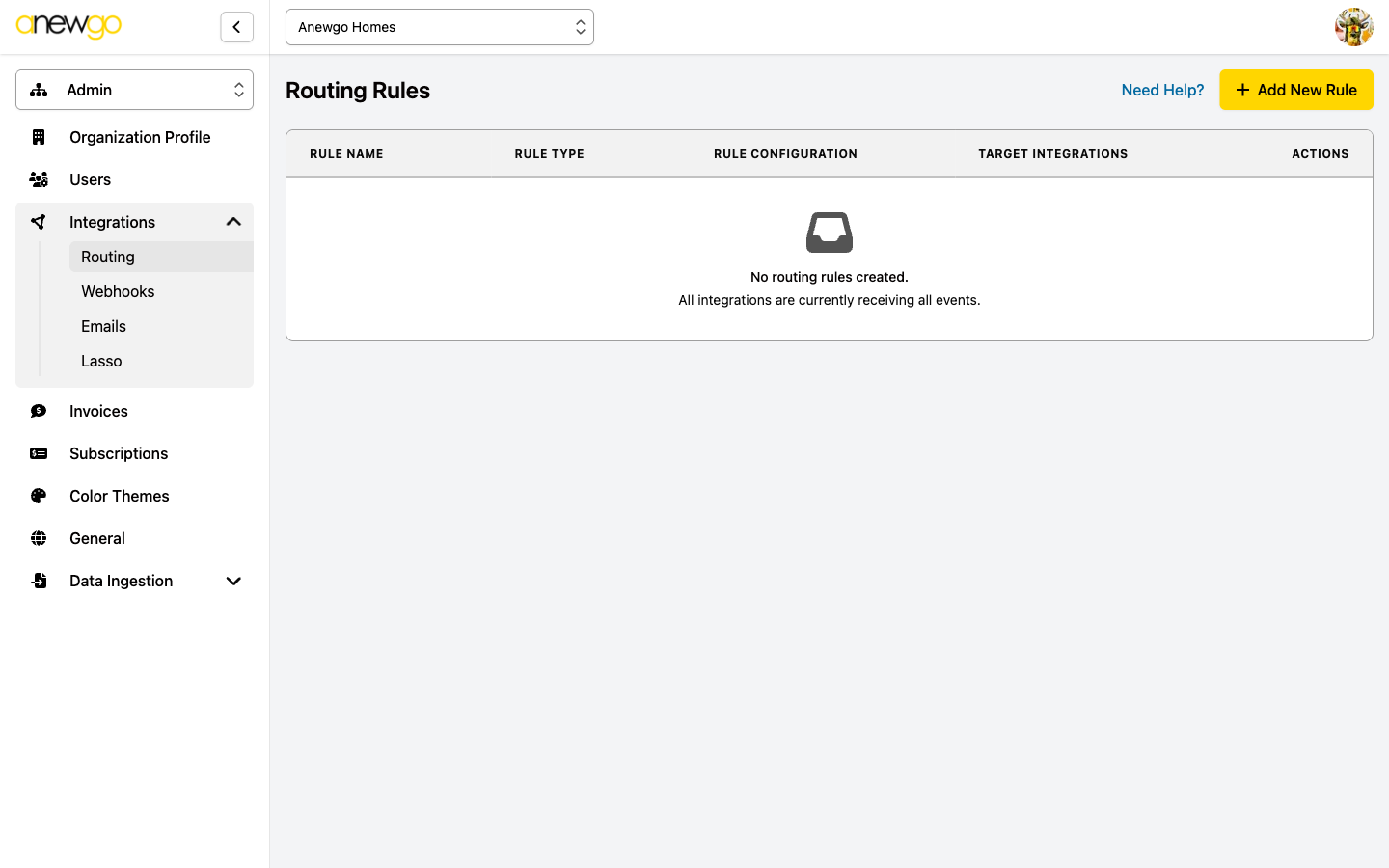
- Open Admin -> Integrations -> Routing.
- Click Add New Rule. The Routing Rule drawer opens.
- Select the Rule Type.
- If necessary, enter a Name.
- Select one or more Targets (integrations).
- For a Community rule, select Communities. For a Keyword rule, add Keywords.
- Click Submit.
The Routing Rules table shows Rule Name, Rule Type, Rule Configuration, and Target Integrations. To change a rule, use Edit. To delete a rule, use the trash icon. You cannot undo a rule deletion.
More details about the Routing Rule drawer:
- The Rule Type is Fallback when the drawer opens. Change it if necessary.
- Targets lists all webhook, email, and Lasso integrations of the organization. Select a minimum of one. Otherwise, the drawer shows At least one Target must be selected!
- Communities shows only for a Community rule. Select a minimum of one community.
- Keywords shows only for a Keyword rule. Type a keyword, then press Enter or click Add. To remove a keyword, click the x on it. You cannot add the same keyword two times.
To sort the table, click Rule Name or Rule Type. If a rule has more than one target, the Target Integrations column shows “+ N others”. Put the pointer on it to see all targets.
If there are no rules, the table shows No routing rules created. and “All integrations are currently receiving all events.”
To see an example of rules, click Need Help? on the Routing Rules page. The Routing Help drawer explains each rule type and shows a sample configuration.