
- To exclude certain elevations or color schemes from your lots on your siteplan, go to “Communities” and select the community you need to work in, then click “Siteplan.” All of your siteplans for that community will display below. Click the pencil icon (edit) for the siteplan you want to work with.

- This will bring you to your siteplan map. Scroll down to the Home Sites list.

- Here you can see all of your lots listed. Find the lot you need to edit and click the + to expand the list options.

- This will default to the “Lot Details” tab. Click on “Exclusions” next to it.

- Here you will see two areas – “Elevation Exclusions” & “Scheme Exclusions” (Note: scheme exclusions only work if you have schemes set up for your community)

- The boxes on the left list the options that will be seen on your front end. To exclude options, click the elevations and/or schemes you want to exclude. (Note: the # Items select option at the top of each box serve as “Select All” function)

- Then click the > to move your selected options to the “Excluded” box.

- Now you can see which options will be included and excluded on your front end.

- If you need to move anything back, select the option you need to move and click <


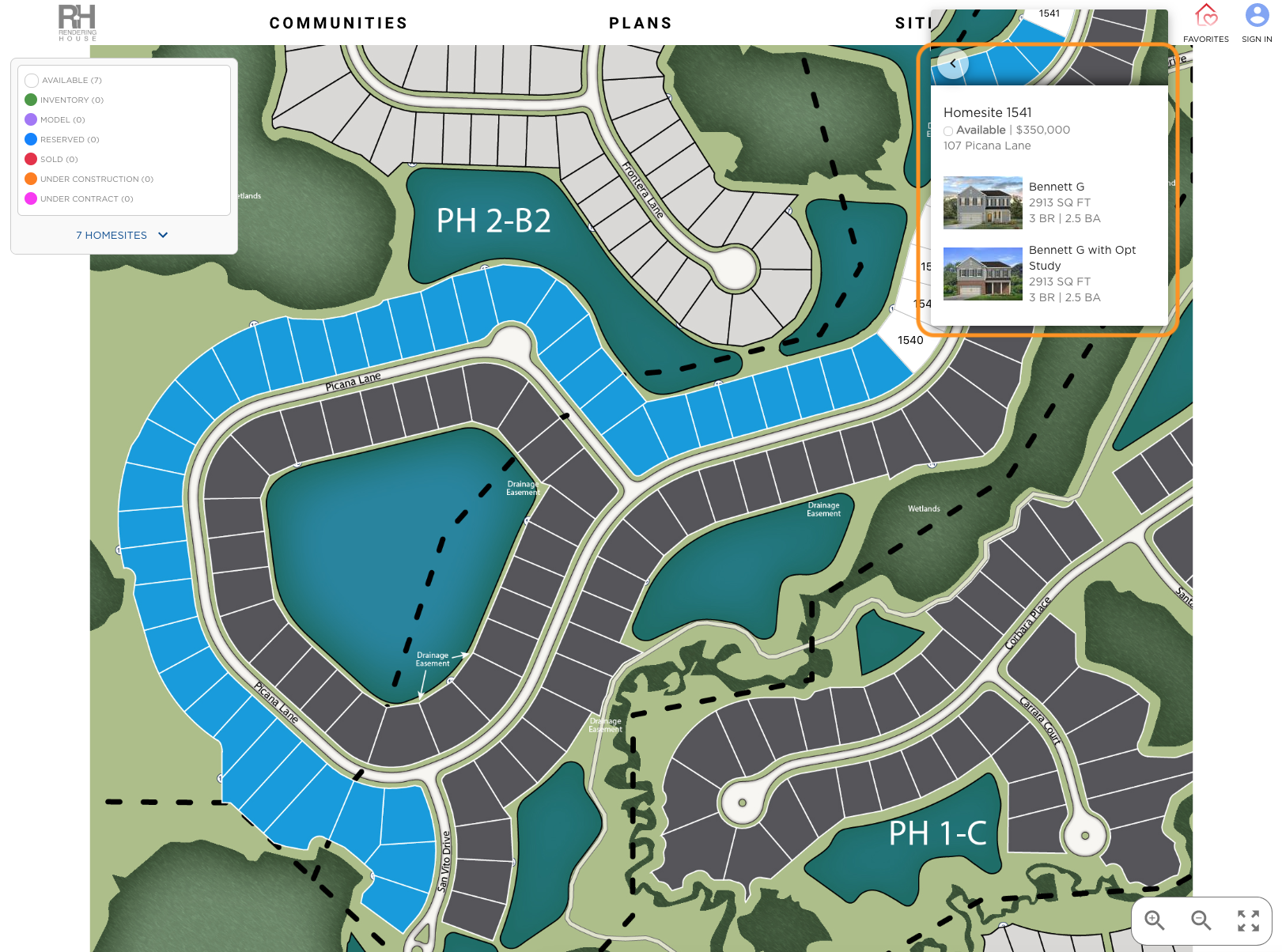
10. Once you have your exclusions set, you can check on the front end of both the My Hope App and Sales Center App.
Please note: the Sales Center App mentioned above is an additional cost/upgrade. Please contact your Account Manager for more details.