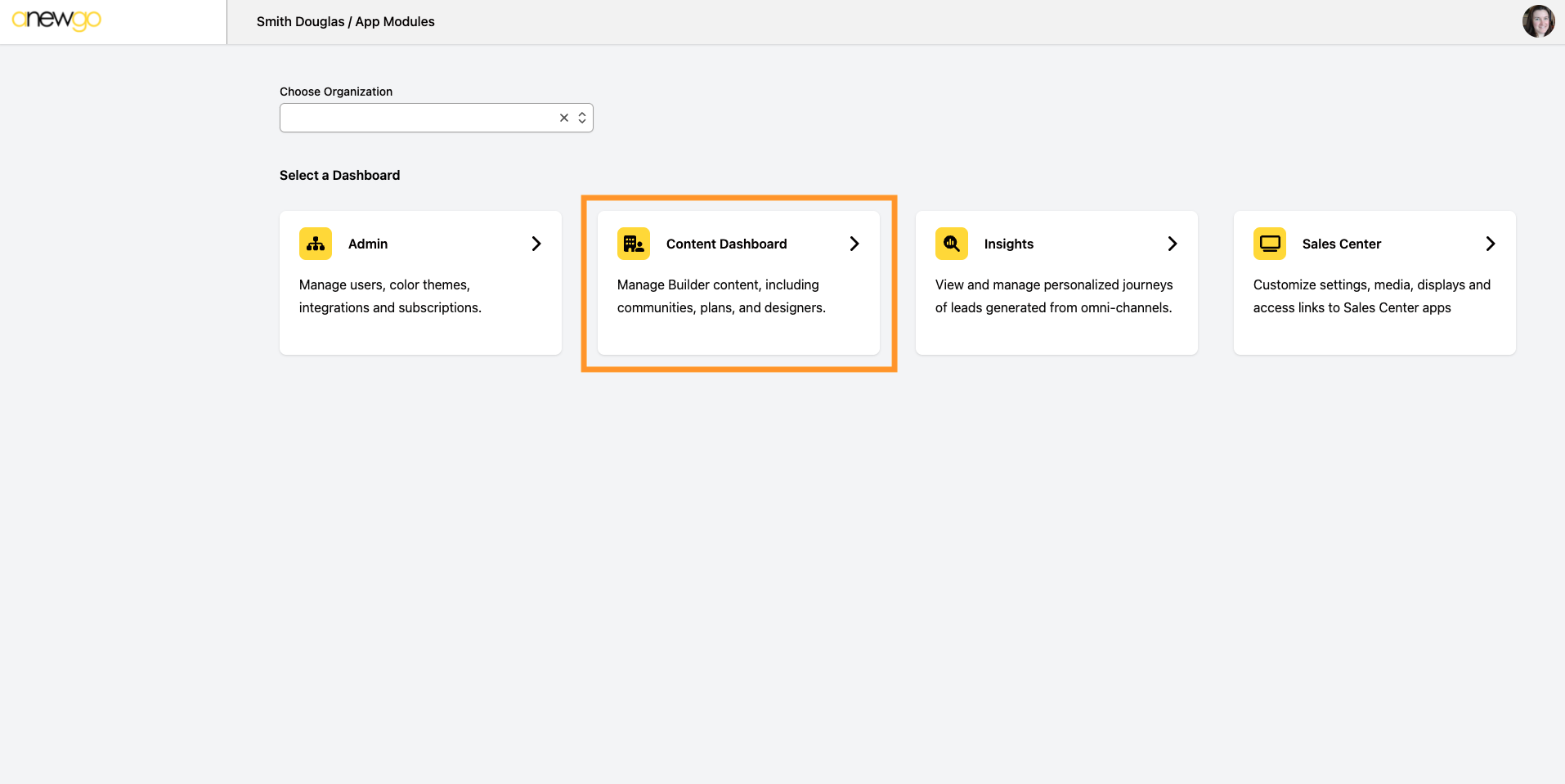
- You can access the Manage Media section via the Content Dashboard
Note: the Manage Media module will also pop-up and be accessible as you work within the different products/apps
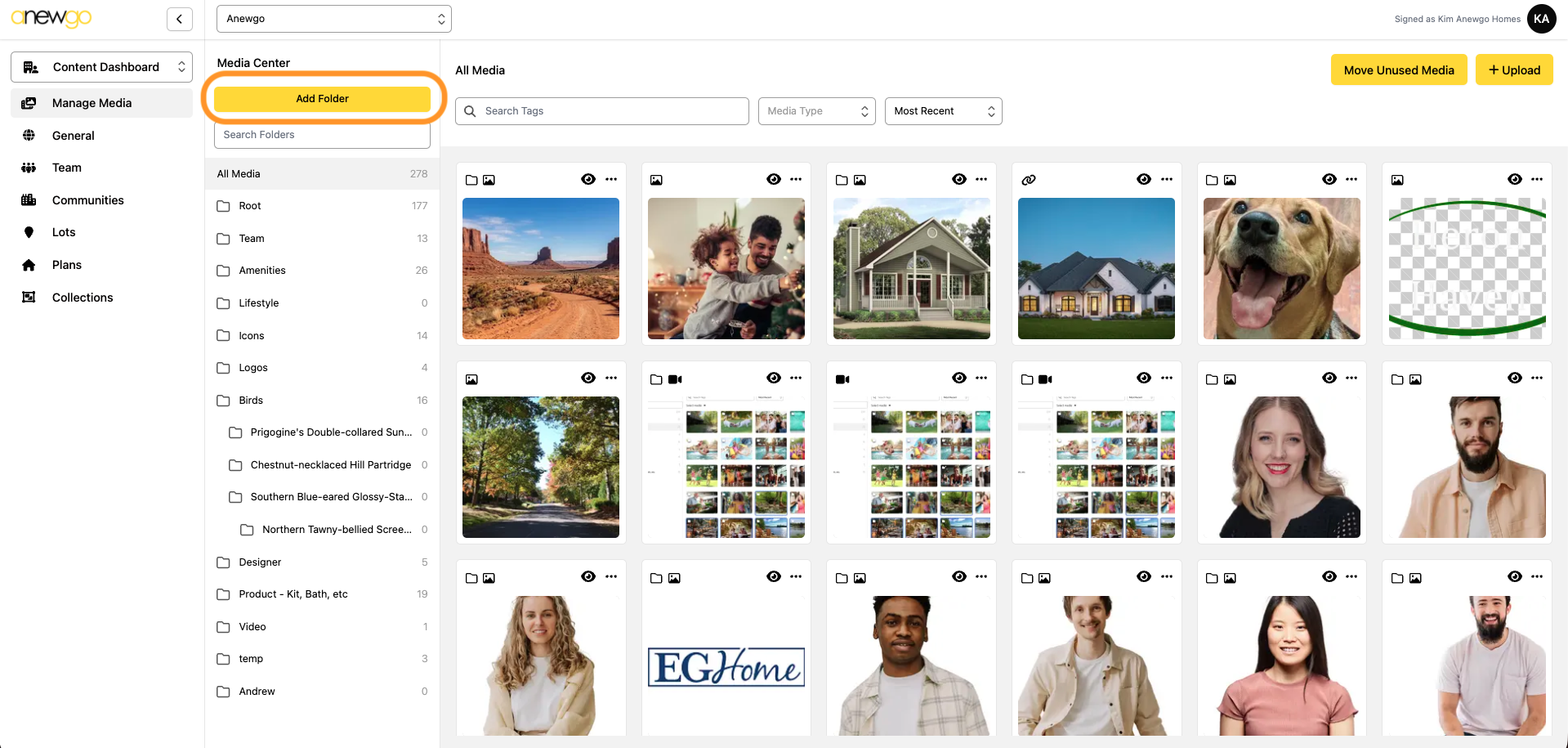
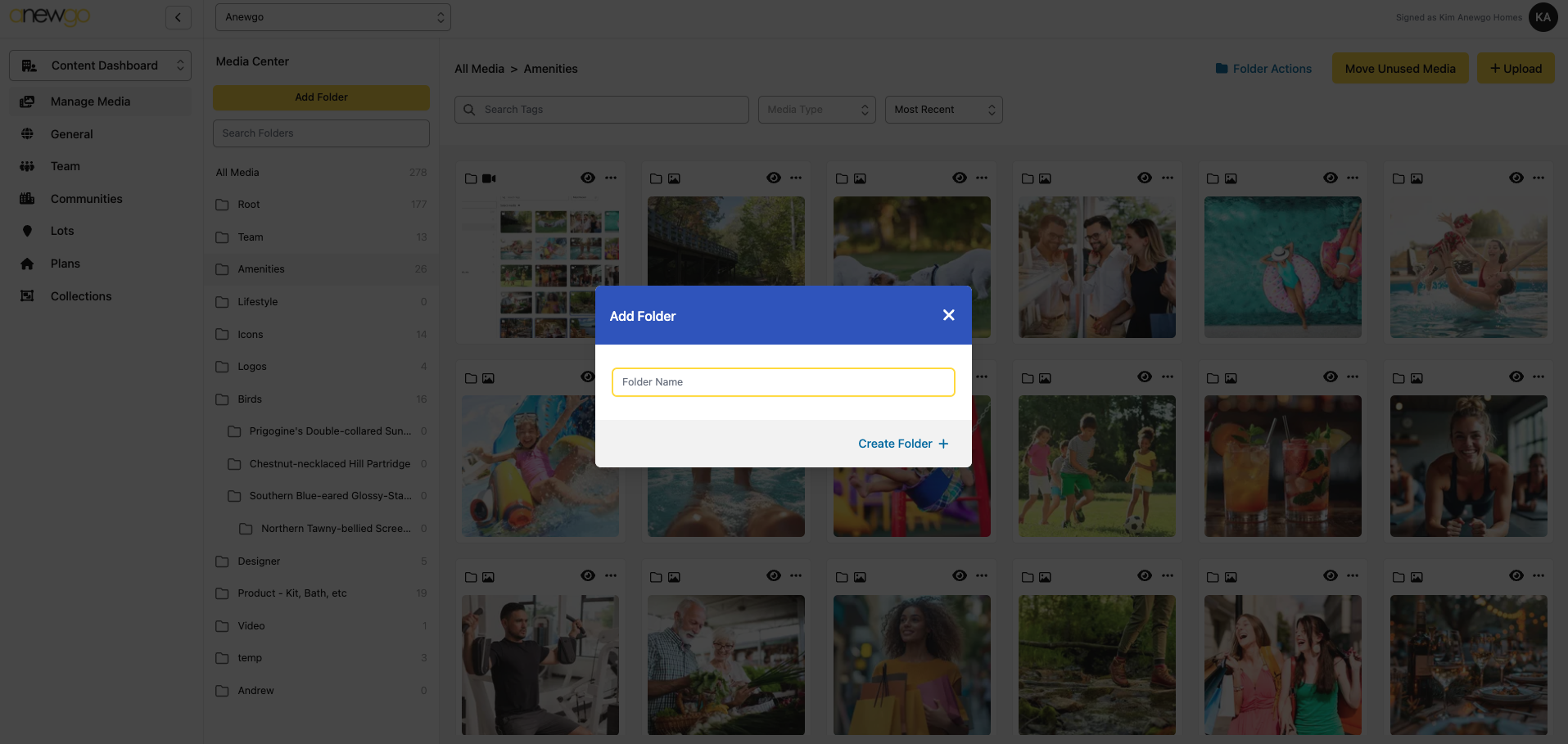
2. To best keep your media organized, we do recommend starting with creating Folders. Click Add Folder
3. Type in the Folder Name and click Create Folder +
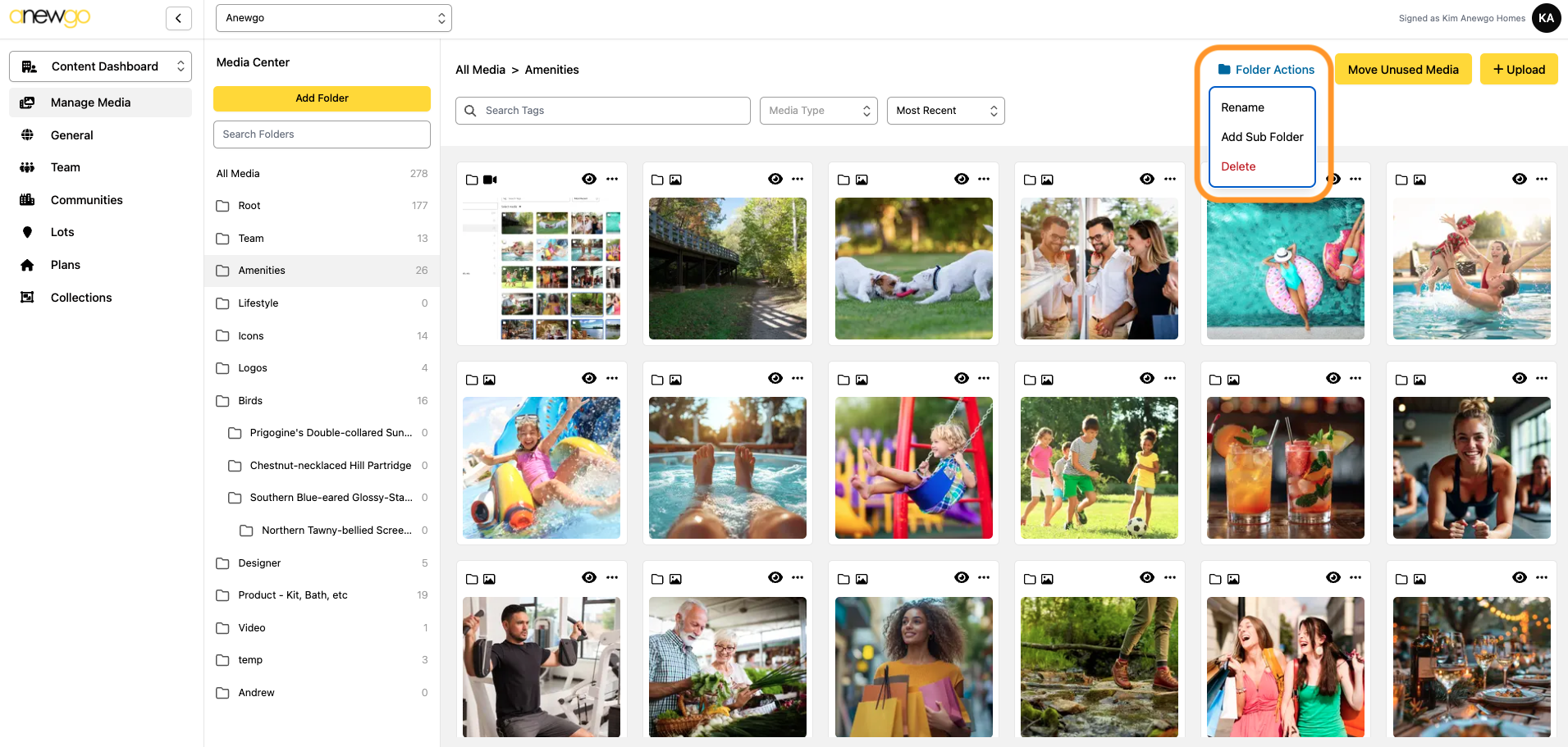
After you create Folders, you can Rename, Add Sub Folder or Delete them with Folder Actions
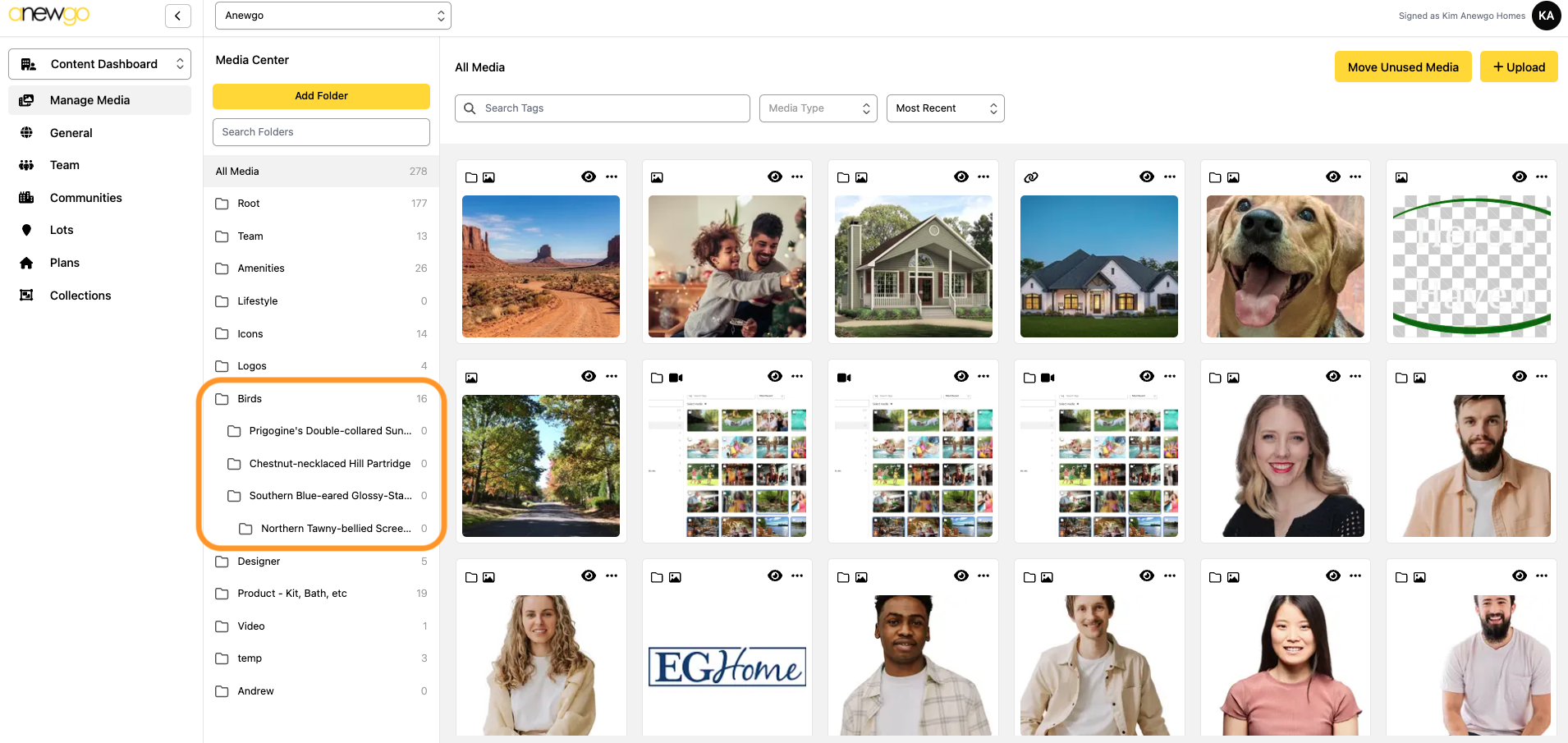
Sub Folders will display like this in the list:
*Note: The number displaying next to the folder is how many images are in that folder
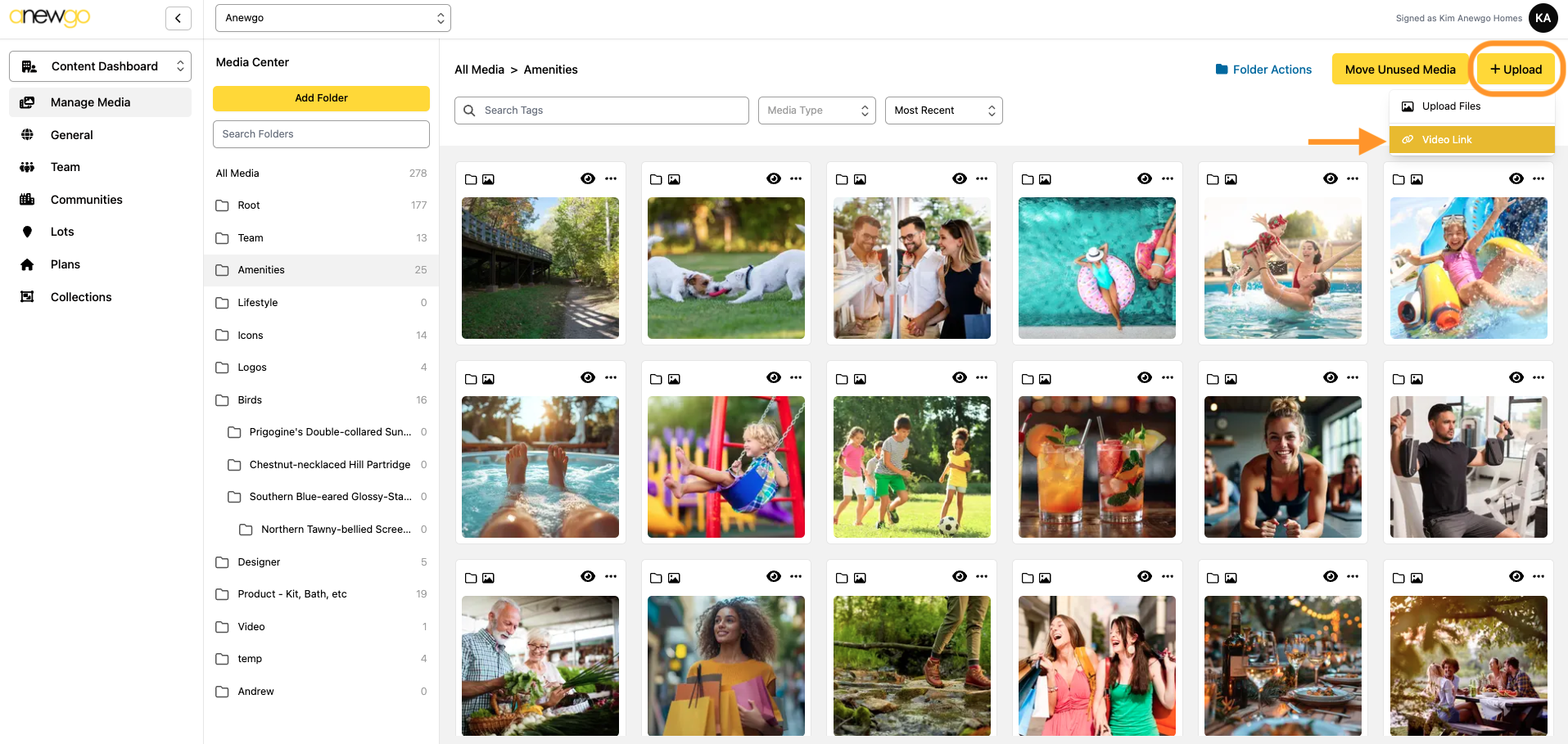
4. Select the Folder where you would like to add the video (use the Search Folders field if needed to find your folder). You can add video files, but the limit is 41.9 MB to make sure your app/website processing is fast. If you cannot compress the video file and you need to use a larger file, you can use a YouTube or Vimeo video link.
Click + Upload Media and then select Video Link
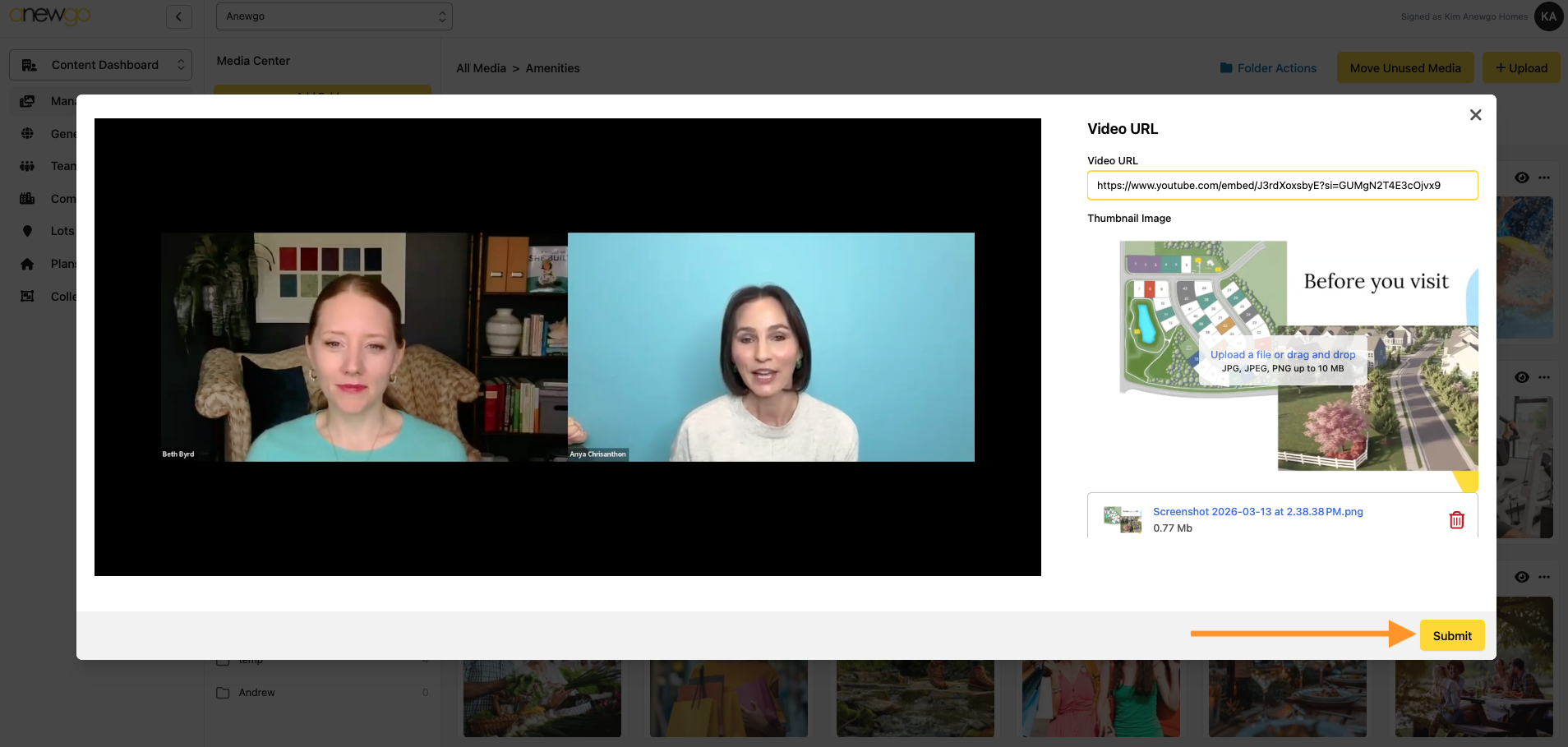
5. You will need both the video link and a still image to load this correctly.

For the video link, you need the player link from INISDE the embed link. Here is how to get this link from YouTube and Vimeo…
YouTube
Navigate to the video needed. Click Share and then click Embed
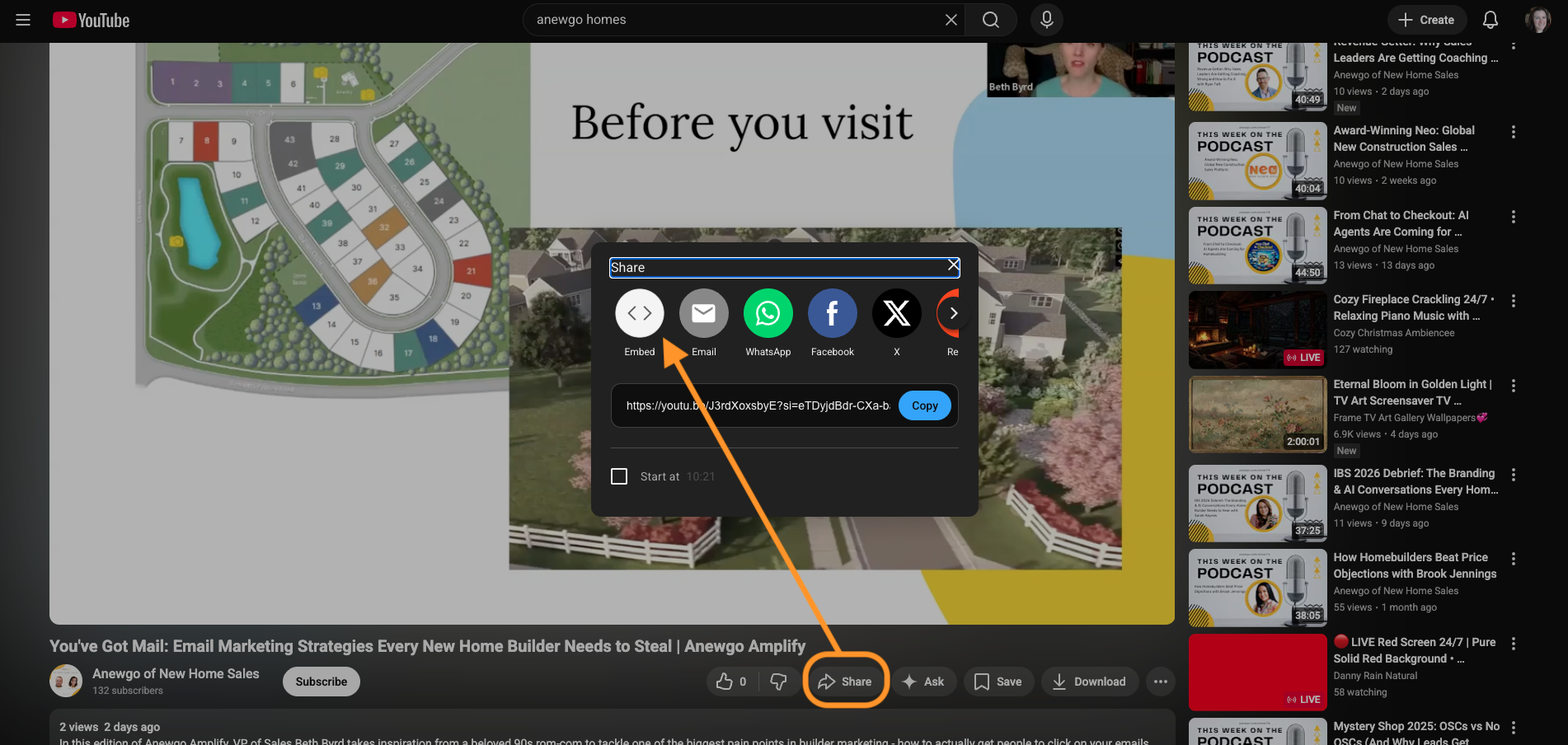
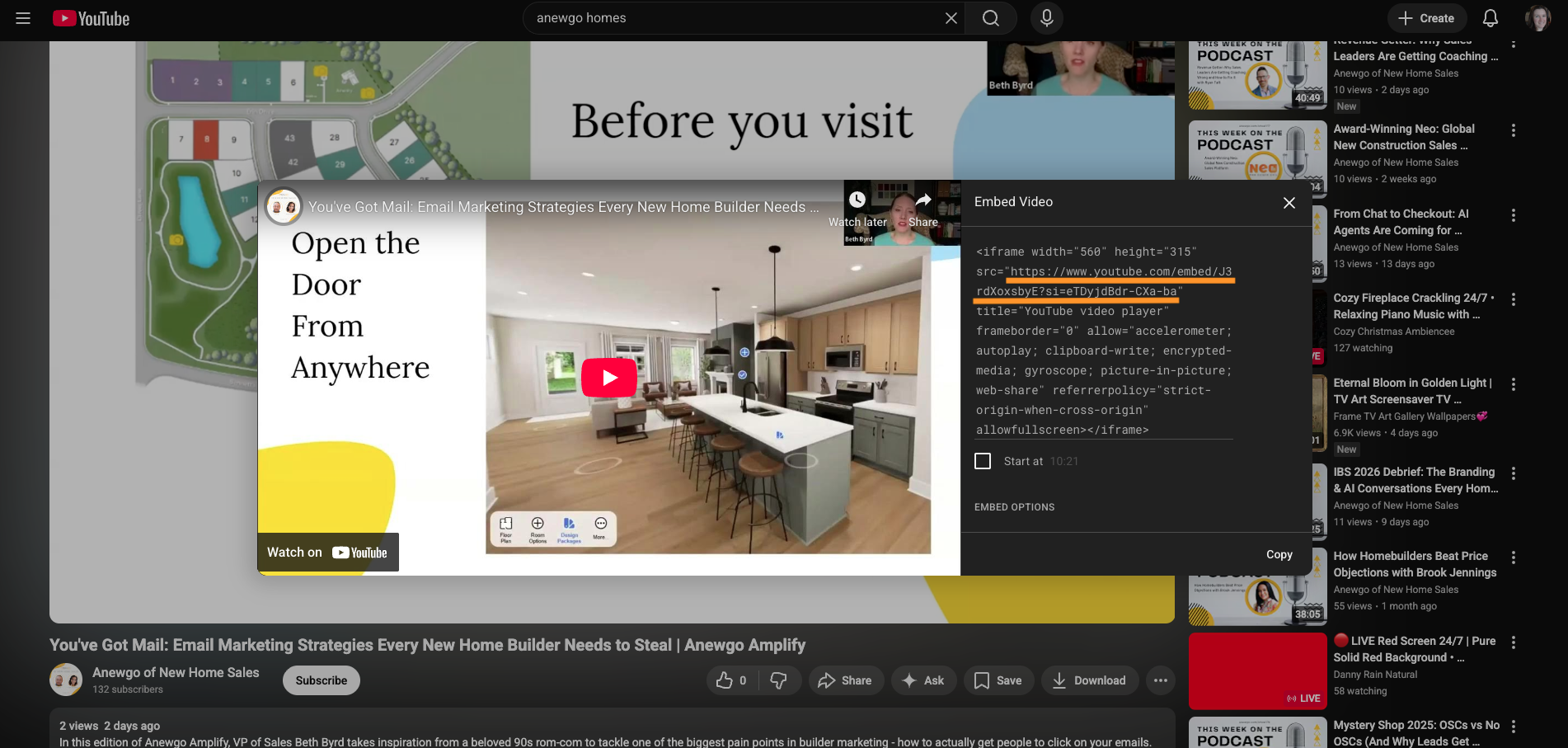
Now, you only need the player link from inside this full link (see the orange underline in photo). To get this link, you may need to copy & paste the enter embed link to a doc and then copy the player link from that (see red text below).

Vimeo
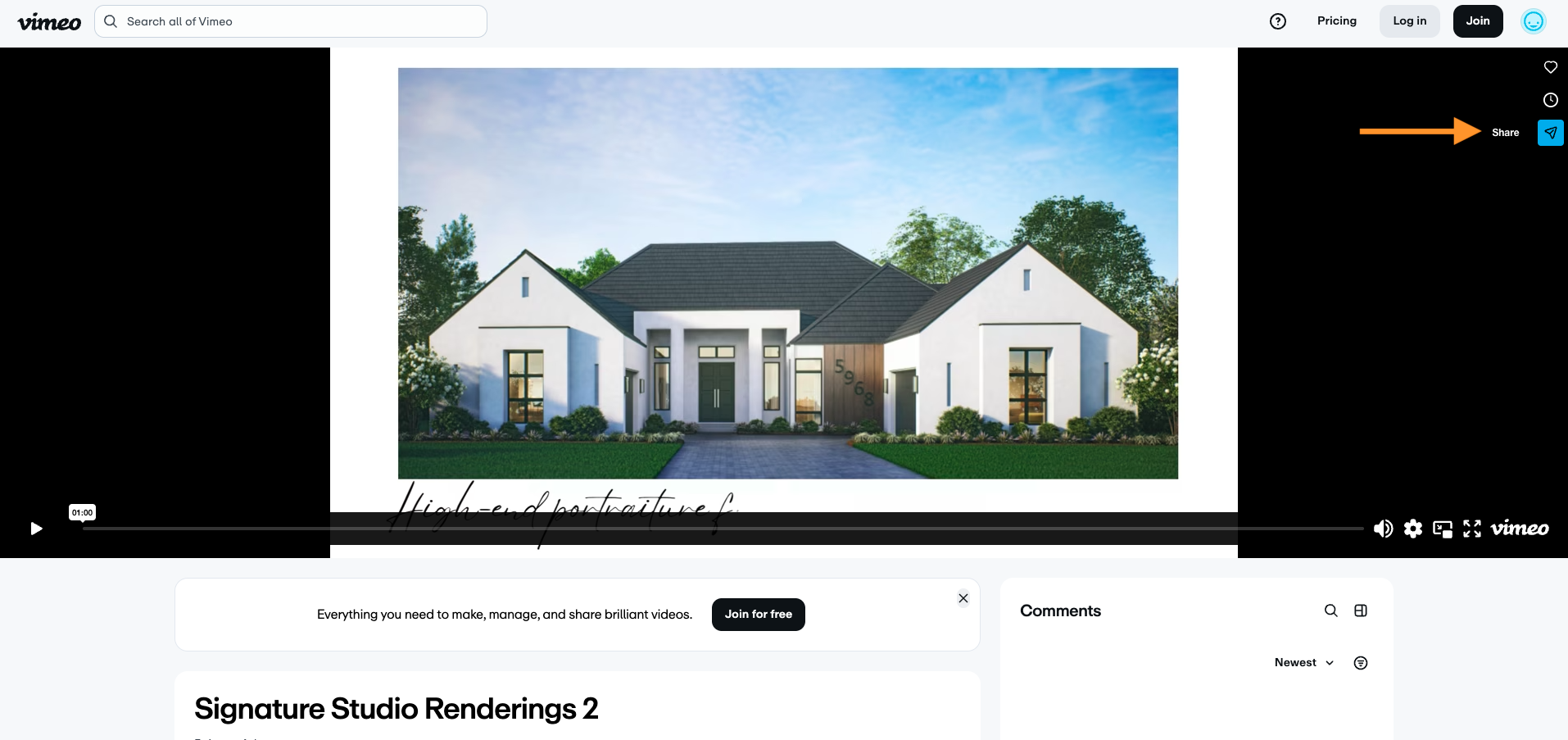
Navigate to the video needed. Click Share
Click the embed icon
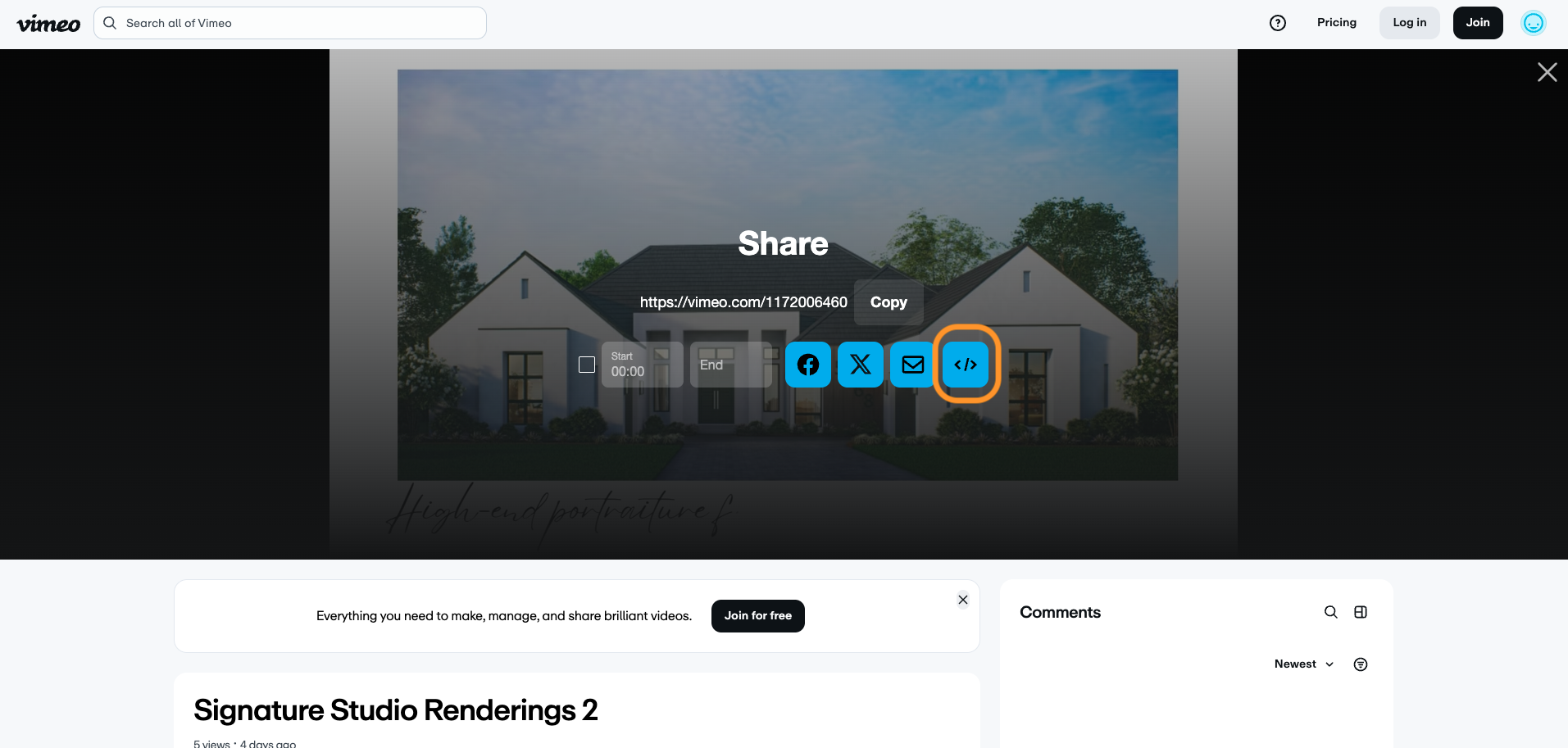
With Vimeo, you will need to copy the entire link and paste it to a doc to get the player link needed (see red text below)
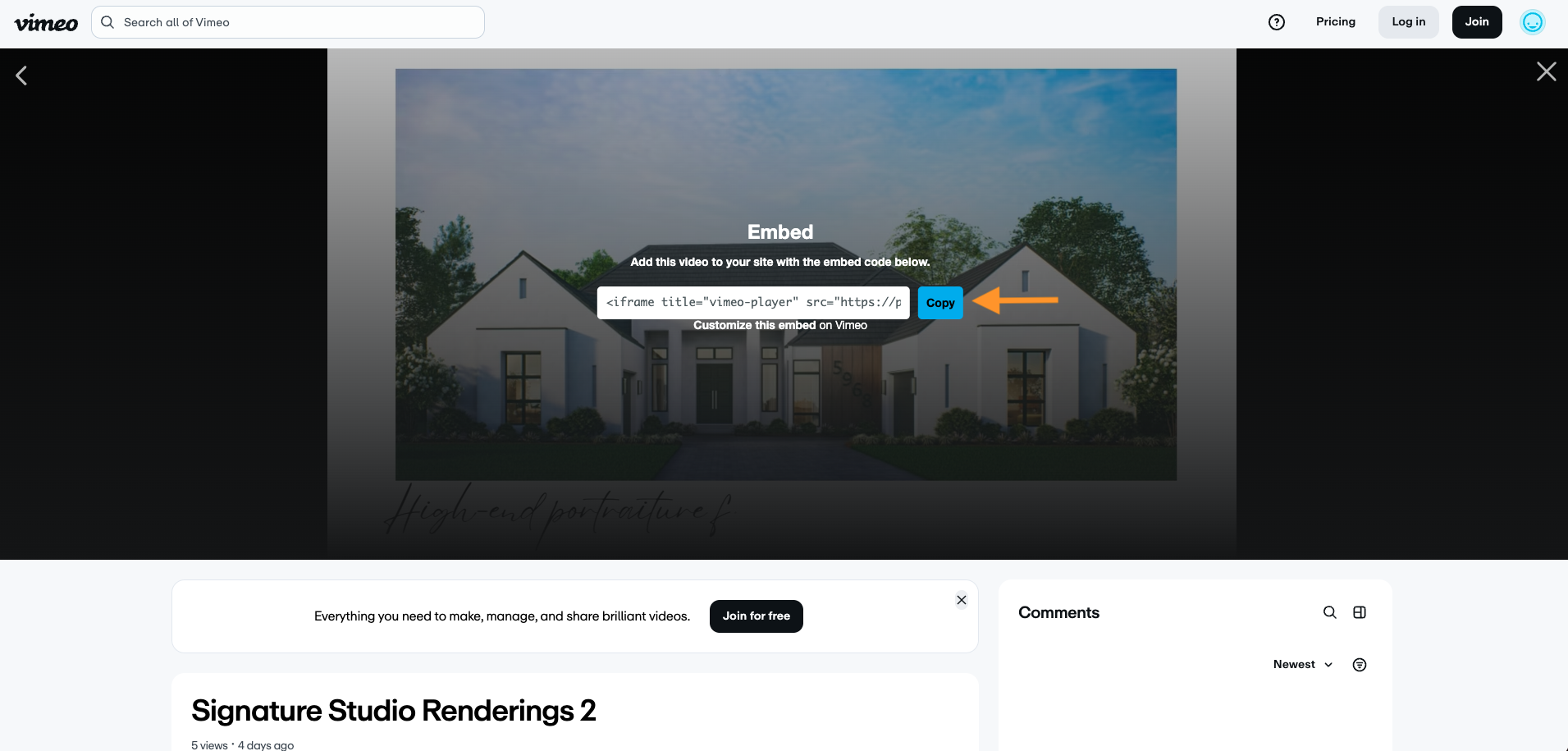

6. Add your player link & still image to the corresponding fields and click Submit
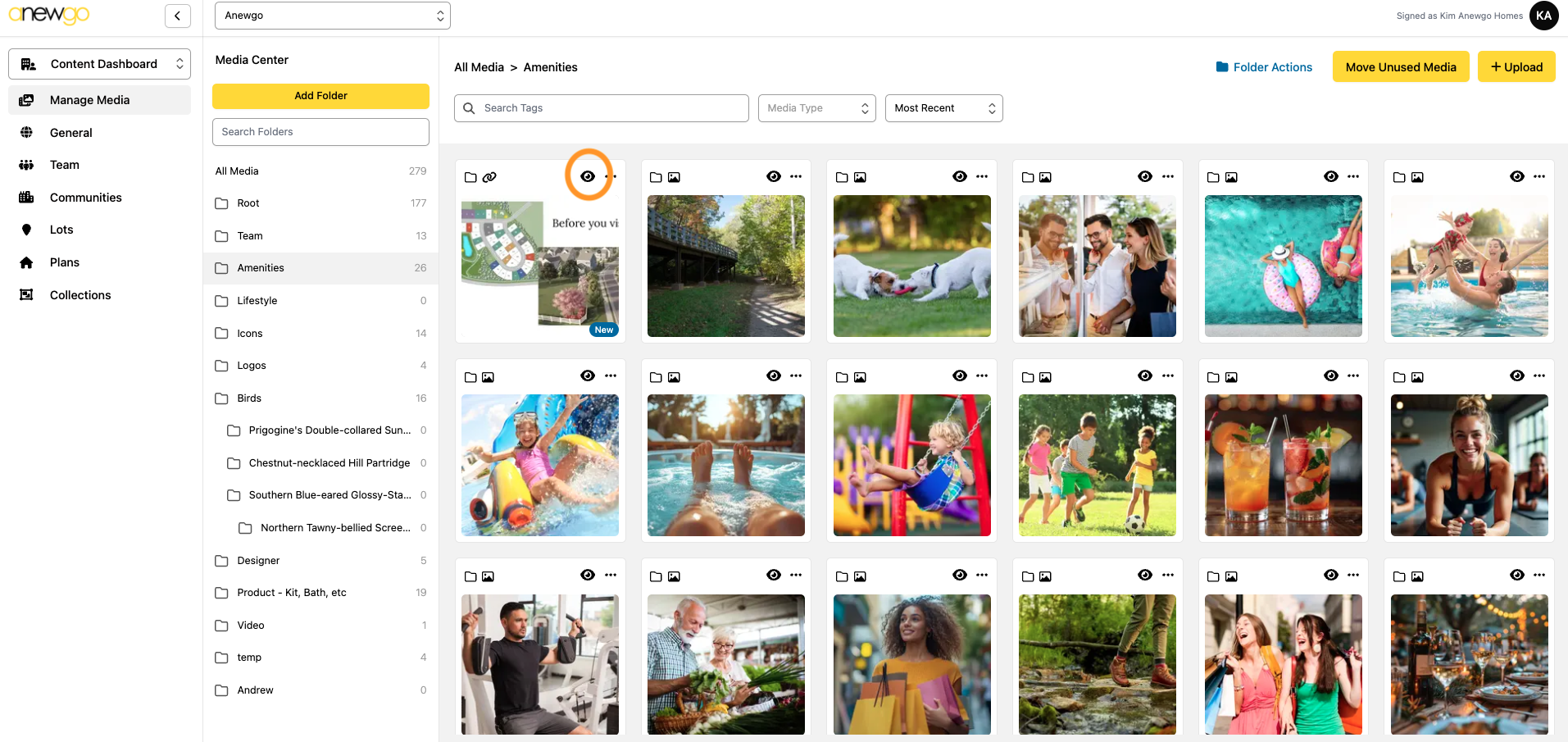
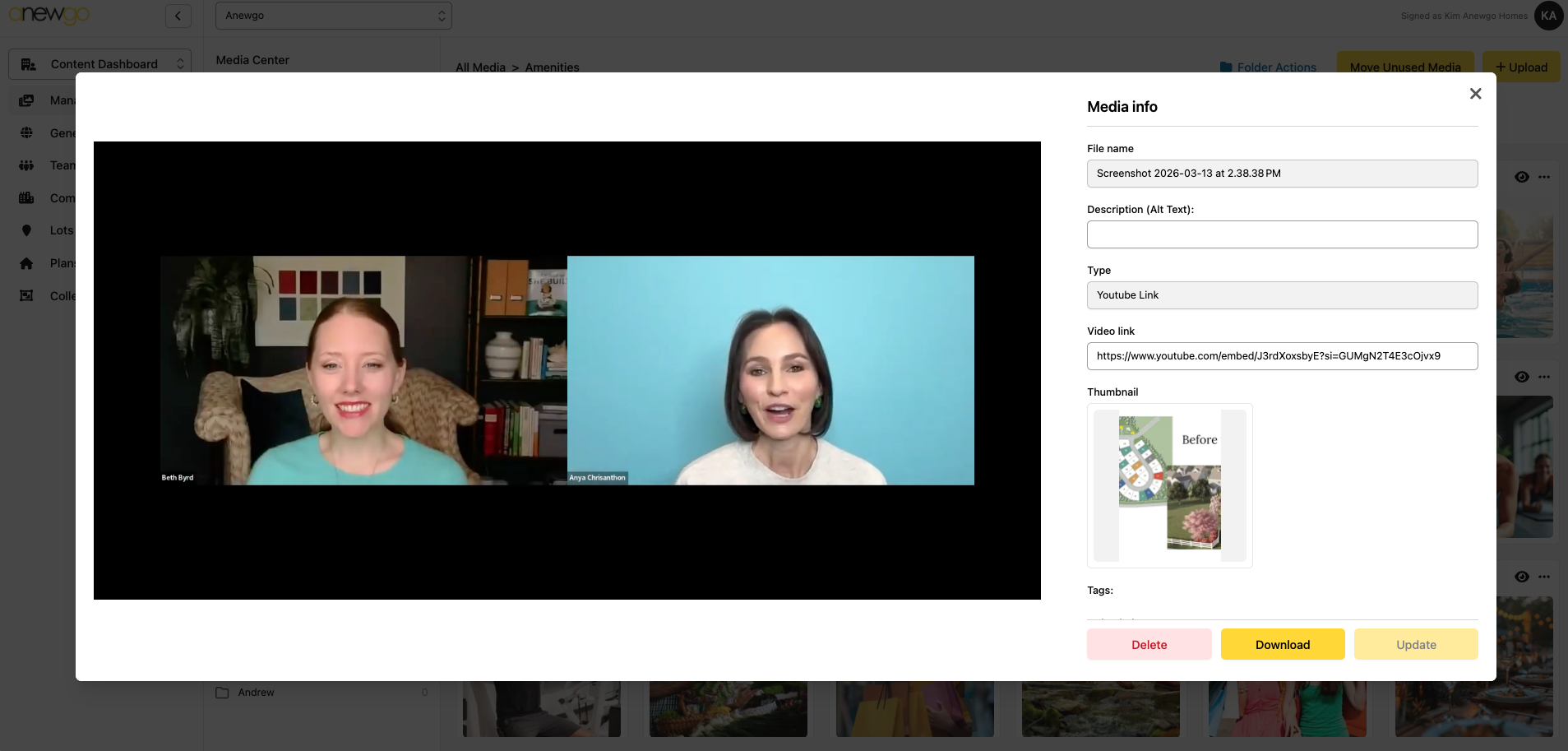
7. Now it is added to your Media library! You can click the eyeball icon to preview it and make edits if needed.